
In short
Keywords describe what you want to search for around your product. Review suggestions when available, remove overly broad terms and add the specific uses you care about before launching Discover.
Find your product’s keywords
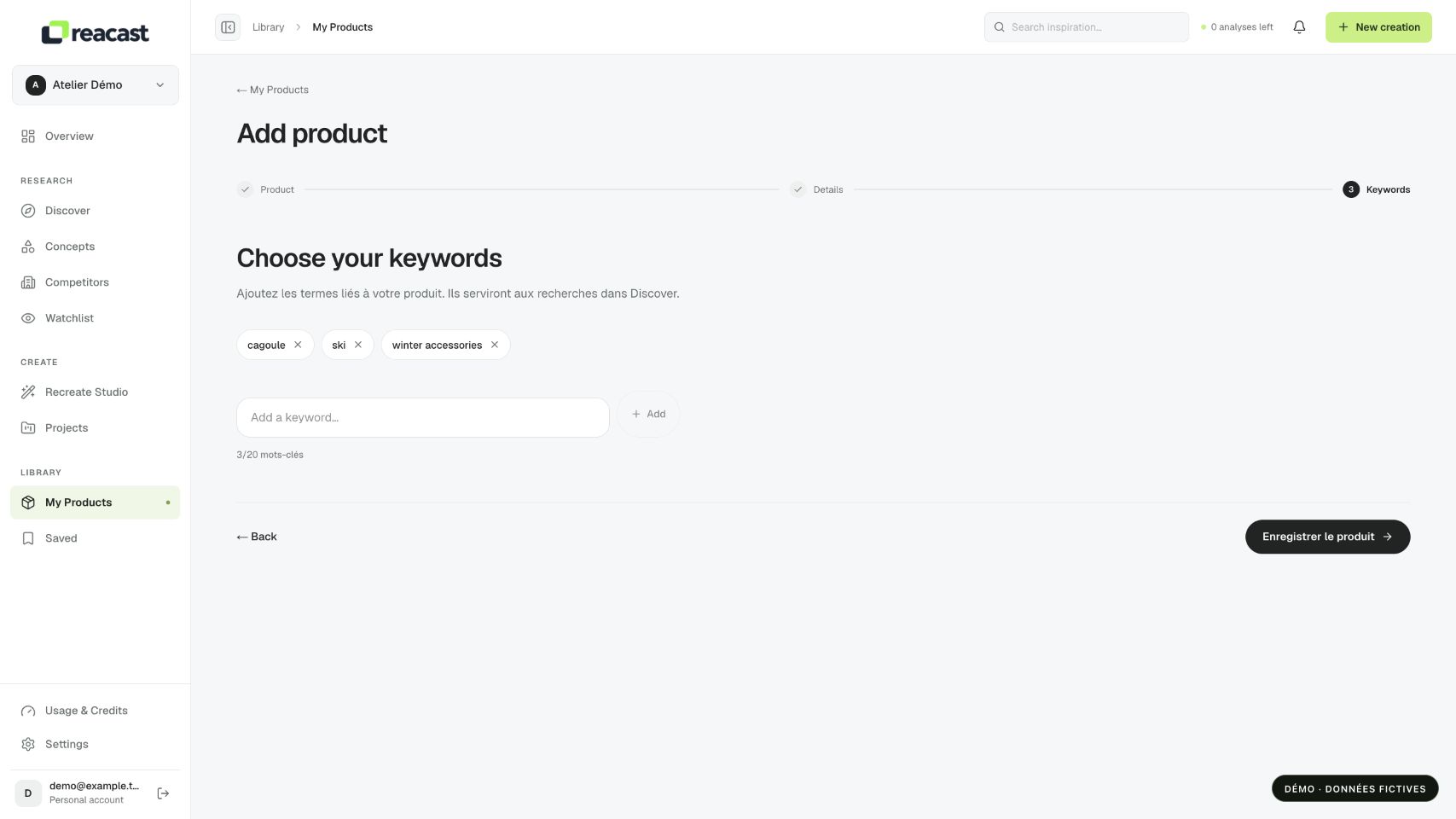
Onboarding lets you prepare keywords for your first search. In My Products → Add product, the Choose your keywords step lets you add or review them before saving. A Shopify selection may suggest terms from catalog tags.
Suggestions may be absent. That does not mean the product cannot be searched: you can write your own terms. Suggestions are not an analysis of your market’s performance.
Keep, remove and add a term
- Read each keyword chip. Keep terms that match the product, its category or a use that can be shown on video.
- Use the cross on a chip to remove an unhelpful term. Removing a keyword does not delete your product.
- Enter a new term in Add a keyword, then use Add or press Enter. In Add product, the limit is 20 keywords, with at most 80 characters per term.
- Finish saving the record, or finish initial setup if you are in onboarding. Adding a chip to the form does not launch a search.
Choose words that describe a use
For a fictional insulated bottle, you could try “insulated bottle”, “reusable bottle” or “cold drink hiking”. Avoid relying only on “trending” or “best product”: these say little about what you need.
Choose the language of the content you want to explore, then adjust based on results. No keyword guarantees a relevant video, a particular audience or sales.
Use these words in Discover
In Discover, choose Product to select your saved record, or Keyword to test a specific phrase. Review the displayed query before launching it. If results are too broad, use a more specific use case or choose an available network.