
In short
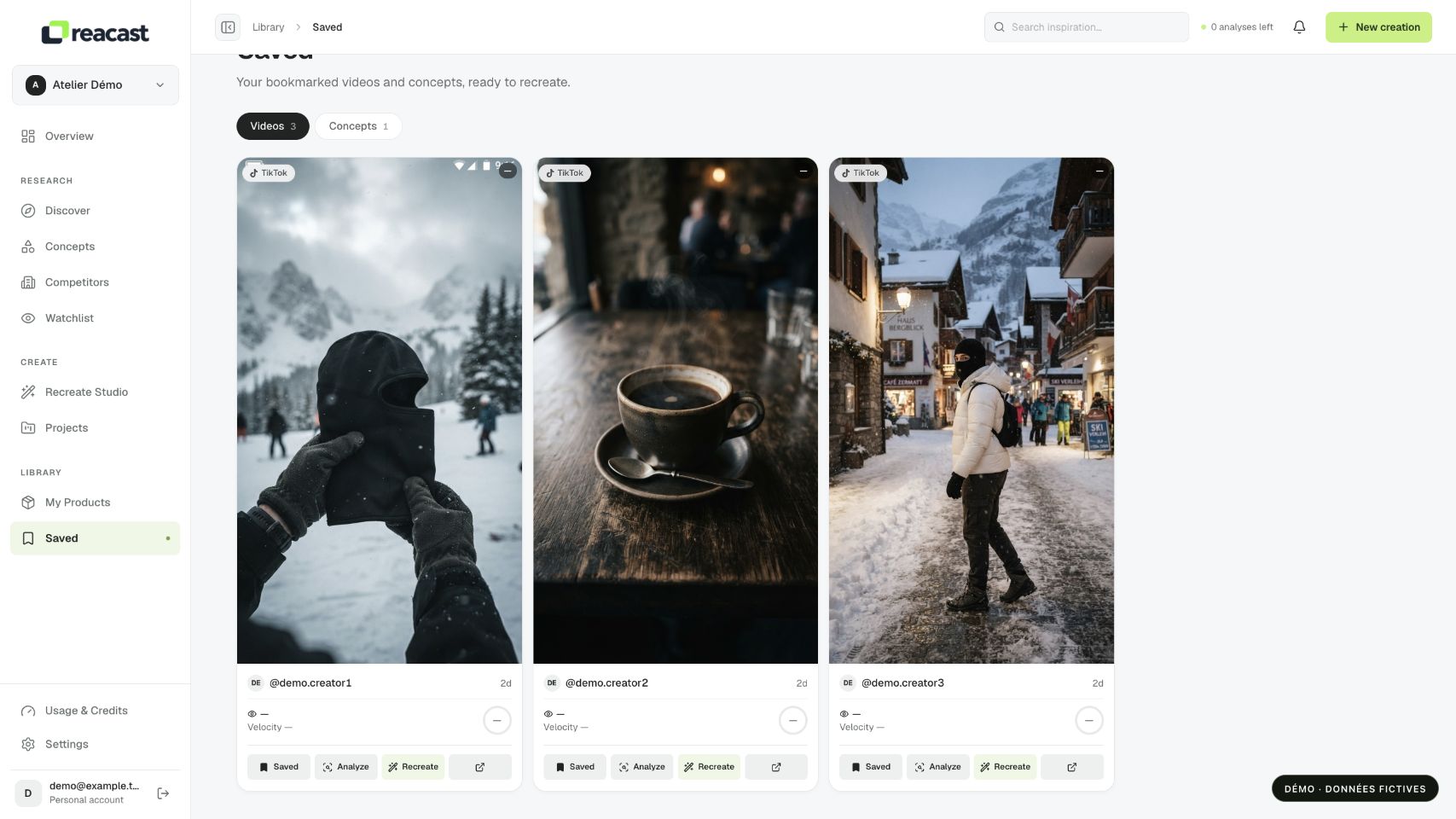
The bookmark on a video card adds the post to Saved in your workspace. You can then find the inspiration, view it and separately decide whether to analyze it or prepare your version.
Save from a video card
- Open Discover and find a video matching the product, action or concept you want to study.
- Use the card’s bookmark icon, labeled Save video or Save depending on the view.
- Wait for saving to finish. A filled bookmark, or the Saved label, indicates that the post is saved. The control is temporarily disabled during the request.
- Open Saved under Library, then the Videos tab. Your post should be there; reload the page to verify it was retained.
Use your library
Saved gathers references bookmarked in your workspace. Videos shows saved posts. Concepts shows concepts linked to your saved videos when those concepts are available.
Saving a video does not launch AI analysis, generation or publication. It keeps an inspiration so you can find it again. Analysis and preparing a version are separate actions.
Remove a saved item
Click the filled bookmark again, or the Remove saved video control. The reference leaves your saved items. This does not delete the original post from its network.
If saving or removing fails, a message appears on the card. Check your connection and the bookmark state before retrying; a click alone does not prove that the change was retained.